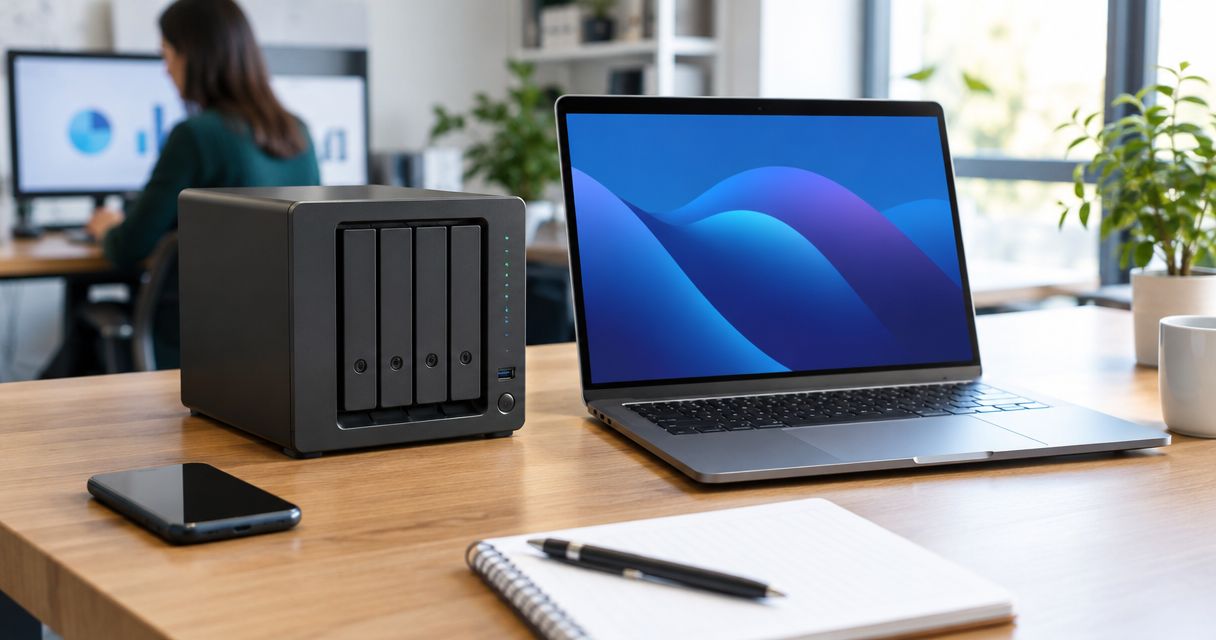
Best overall for straightforward file sharing: Synology DiskStation DS923+. Best for offices adding multi-gigabit networking: QNAP TS-464. Best for separate SSD storage alongside hard drives: ASUSTOR AS5404T. This 2026 guide compares the best network attached storage devices for small business by workload, networking, administration, and backup requirements—not by advertised capacity alone.
- The best network attached storage devices for small business match your file-sharing workload, network, and backup requirements.
- Synology DiskStation DS923+ is the default recommendation for centralized office file sharing.
- QNAP TS-464 suits multi-gigabit networking; ASUSTOR AS5404T suits separate SSD storage.
- Tabler's Computer Repair provides IT support for small businesses in North County San Diego and the Inland Empire.
- RAID preserves availability after certain drive failures; independent backups protect recoverable copies of your files.
Why this matters
A NAS centralizes files, but centralization also concentrates risk. A mistaken permission, compromised administrator account, or deleted folder can affect the shared copy your business depends on.
Choose the storage system and its recovery plan together. Tabler's Computer Repair provides remote and on-site computer repair, IT support, and recurring maintenance plans for homes and small businesses. These device recommendations concern hardware selection; they do not imply that the business sells these models or includes particular configurations in its services.
What makes the best small-business NAS
Use these criteria before comparing hardware:
- File-sharing fit: Match the NAS to shared documents, large project files, workstation backups, or another defined workload.
- Network connection: Compare the NAS ports with your switch, cabling, and computers. A faster NAS port cannot remove a slower connection elsewhere.
- Storage layout: Separate drive bays, usable capacity, SSD storage, and redundancy. They answer different questions.
- Administration: Check account management, permissions, updates, notifications, and whether someone will actually maintain them.
- Recovery options: Require a backup destination outside the main storage pool and a documented restore procedure.
- Compatibility: Check the manufacturer's current drive list, software requirements, and support information before selecting components.
For a small office, administration and recovery deserve as much attention as processor specifications. A technically capable device is a poor choice when nobody owns its updates or understands its backup failures.
Small-business NAS devices at a glance: 2026
These are distinct workload recommendations, not a claim that one enclosure wins every benchmark. Hardware details below refer to the manufacturers' published specifications for the named models; actual transfer performance depends on your configuration.
| Device | Best for | Standout feature | Key limitation |
|---|---|---|---|
| Synology DiskStation DS923+ | Centralized office file sharing | Four drive bays with Synology DiskStation Manager | Built-in networking is 1GbE; 10GbE requires an optional upgrade |
| QNAP TS-464 | Offices adding multi-gigabit networking | Two built-in 2.5GbE ports | Faster ports require compatible network equipment to provide their benefit |
| ASUSTOR AS5404T | Separate SSD storage alongside hard drives | Four M.2 NVMe slots alongside four SATA bays | More storage-layout decisions increase administration requirements |
All three are enclosures that need a suitable drive configuration. Do not confuse the number of bays with the amount of usable storage, and do not treat an extra network port as an automatic doubling of one user's transfer speed.
1. Synology DiskStation DS923+: best NAS for office file sharing
Synology DiskStation DS923+ is a four-bay NAS running DiskStation Manager. It provides a central place for shared folders, user permissions, and storage administration, making it the default recommendation here for an office primarily organizing business files.
Synology DiskStation DS923+ is the best overall pick in this guide for small offices prioritizing shared-file administration over built-in multi-gigabit networking. That distinction matters: its standard network ports are 1GbE, so the recommendation is about workload fit rather than the fastest included connection.
Synology DiskStation DS923+ pros
- Four drive bays provide room to plan a redundant storage layout rather than relying on one internal drive.
- DiskStation Manager supports centralized shared-folder and user administration.
- An optional 10GbE network upgrade provides a path beyond the built-in connections.
Synology DiskStation DS923+ cons
- Built-in 1GbE networking limits a single connection compared with a compatible multi-gigabit setup.
- The optional faster network connection adds another component to select and configure.
- Drive and application compatibility still require checking; a familiar NAS interface does not remove that responsibility.
Best for: An office moving scattered business documents into controlled shared folders.
Choose Synology DiskStation DS923+ when the daily job is opening, editing, organizing, and backing up office files. If your main requirement is repeatedly moving large project folders over an existing faster network, compare the included networking against QNAP TS-464 before deciding.
Verdict: Buy for centralized office file sharing; skip it when built-in multi-gigabit networking is a firm requirement.
2. QNAP TS-464: best NAS for multi-gigabit office networking
QNAP TS-464 is a four-bay NAS with two built-in 2.5GbE network ports. It fits an office that has compatible networking or a defined plan to upgrade the connections between computers, switches, and shared storage.
The useful distinction is not simply that QNAP TS-464 has two ports. A compatible 2.5GbE connection offers more nominal link capacity than 1GbE, while actual file-transfer speed also depends on drives, workload, protocols, and the receiving computer.
QNAP TS-464 pros
- Built-in 2.5GbE networking avoids selecting a separate network upgrade just to move beyond 1GbE.
- Four SATA drive bays support a shared-storage configuration with redundancy.
- M.2 NVMe slots provide additional storage-configuration options beyond the main drive bays.
QNAP TS-464 cons
- A computer or switch limited to 1GbE remains a bottleneck on that connection.
- Two network ports do not automatically combine into one faster connection for every application.
- Additional applications and network services increase the settings an administrator must secure and maintain.
Best for: A business sharing larger files over a compatible multi-gigabit local network.
Before choosing QNAP TS-464, map the complete transfer path. Check the workstation adapter, switch ports, cabling, and NAS connection rather than buying around a port specification in isolation.
Verdict: Buy when your network can use 2.5GbE; hold when the network upgrade has no owner or implementation plan.
3. ASUSTOR AS5404T: best NAS for separate SSD storage
ASUSTOR AS5404T combines four SATA drive bays with four M.2 NVMe slots and two 2.5GbE ports. Its distinct use case is an office that wants to evaluate SSD storage separately from its hard-drive storage.
That flexibility needs a purpose. Define which files belong on which storage pool, how permissions apply, and where each pool is backed up before filling every available slot.
ASUSTOR AS5404T pros
- Four M.2 NVMe slots provide room for an SSD-focused storage configuration alongside SATA drives.
- Four SATA bays retain a separate place for hard-drive storage.
- Built-in 2.5GbE ports support compatible multi-gigabit network connections.
ASUSTOR AS5404T cons
- Additional storage pools introduce more capacity, backup, and permission decisions.
- An SSD configuration does not guarantee faster results for every application or network.
- Drive compatibility and cooling requirements need checking before component selection.
Best for: A business with a defined reason to separate SSD-based working storage from hard-drive storage.
Choose ASUSTOR AS5404T for that storage-layout flexibility, not because unused expansion slots look reassuring. An office with ordinary document-sharing needs does not need to populate every slot to build a useful system.
Verdict: Buy for a planned SSD-and-hard-drive layout; skip it if that flexibility has no business purpose.
How to choose the right storage configuration
Start with the files, not the enclosure. Record what must live on the NAS, who needs access, which applications use those files, and how quickly the business needs them restored after a failure.
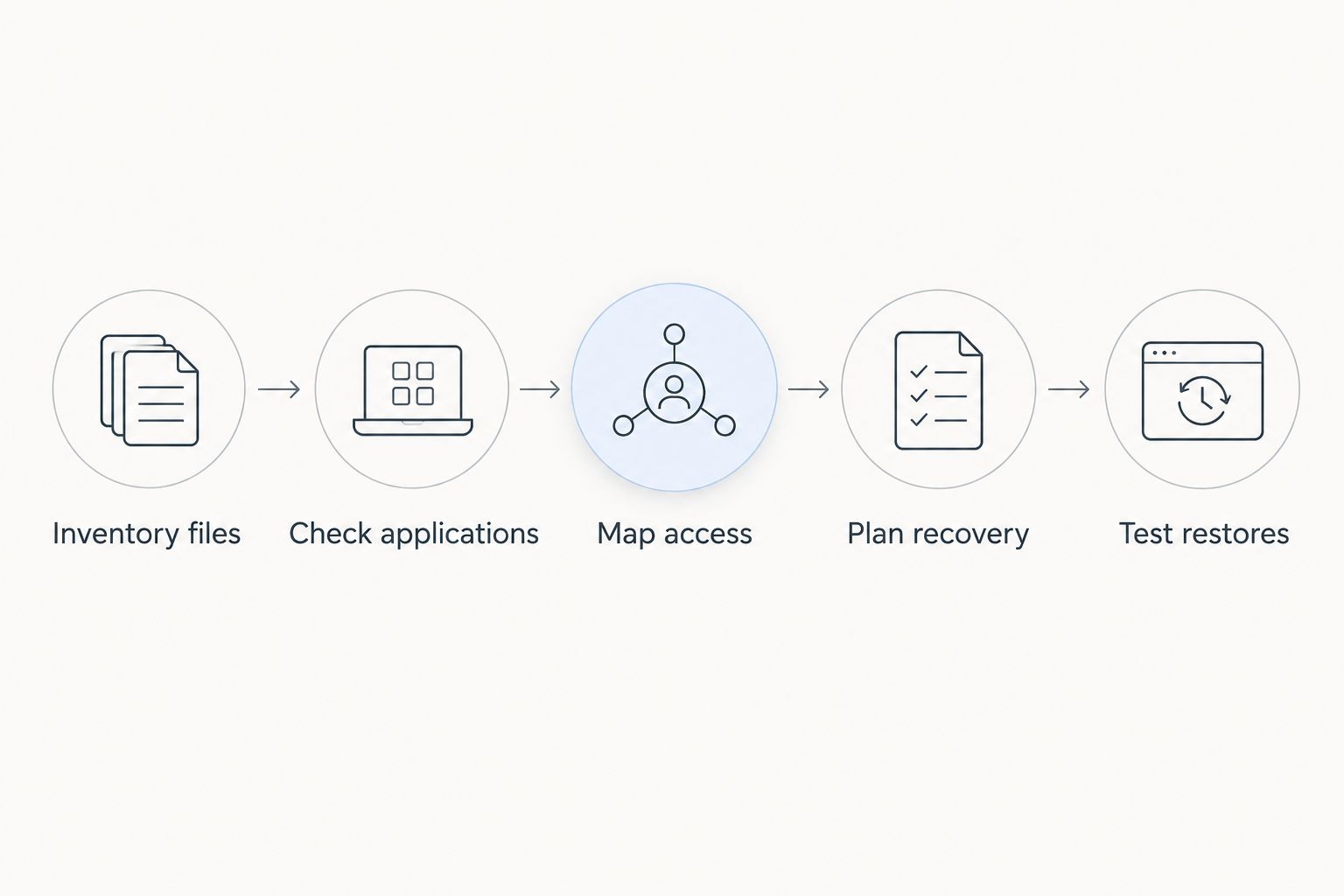
Use this sequence to turn those requirements into a configuration:
- Inventory files: Identify active documents, archives, workstation backups, and application data separately.
- Check applications: Confirm that each application supports the intended network-storage arrangement. A shared folder is not a substitute for an application server.
- Map access: Assign permissions by job responsibility and use individual accounts rather than one shared administrator login.
- Plan recovery: Select an independent backup destination and decide how to handle deletion, device failure, and loss of the premises.
- Test restores: Restore representative files and confirm that someone other than the installer can follow the instructions.
Do not size storage from the raw sum of drive capacities. Redundancy, filesystem requirements, snapshots, and retained backup versions all affect available space. Use the manufacturer's capacity-planning documentation for the exact drive layout you intend to deploy.
RAID, snapshots, and backups solve different problems
RAID is not a backup. A redundant array can maintain access through certain drive failures, but it does not create an independent copy of your business data.
Snapshots preserve earlier states of data on a supported storage system. They help with some deletion and modification problems, but snapshots stored only on the same device remain dependent on that device and its security.
An independent backup creates another recoverable copy. Keep at least one recovery copy outside the primary NAS, protect access to it, and test restoration rather than assuming a completed backup job proves recoverability.
For a 2026 deployment, document what happens after a stolen NAS, an administrator-account compromise, and accidental folder deletion. Each scenario tests a different weakness. A recovery plan that covers only a failed drive leaves the others unanswered.
Secure the NAS before sharing business files
Treat a NAS as a server, not a household appliance. It holds accounts, applications, network services, and business information that require continued administration.
- Limit exposure: Do not expose the NAS administration interface directly to the public internet.
- Separate privileges: Keep everyday file access separate from administrator access.
- Protect accounts: Enable supported multifactor authentication and remove accounts that no longer need access.
- Maintain software: Assign responsibility for operating-system updates, application updates, and security notifications.
- Review services: Disable unused applications and network services rather than leaving every option enabled.
- Check recovery access: Ensure backup credentials and recovery instructions remain available if the NAS fails.
Tabler's Computer Repair provides recurring maintenance plans and IT support. Ask which NAS administration, backup checks, and recovery tasks are included in any proposed scope; do not assume that general IT support includes every storage responsibility.
How the recommendations were ranked
The 2026 ranking prioritizes file-sharing fit, included networking, storage flexibility, administration, and recovery planning. Synology DiskStation DS923+ takes the default office-file-sharing slot; QNAP TS-464 takes the multi-gigabit networking slot; ASUSTOR AS5404T takes the separate SSD-storage slot.
These are specification-based recommendations, not measured transfer-speed results or a claim of hands-on testing. Before ordering, check current manufacturer documentation for drive compatibility, supported software, and the exact configuration you need.
Which small-business NAS should you choose?
Choose Synology DiskStation DS923+ if you need a default for ordinary shared business files. Choose QNAP TS-464 when built-in 2.5GbE matches your network plan. Choose ASUSTOR AS5404T when separate SSD storage is an explicit requirement.
For your 2026 decision, write down the workload, network connection, backup destination, and person responsible for maintenance. If any field is blank, resolve it before choosing drives. A clear operating plan matters more than an unused hardware feature.
FAQ
What's the best network attached storage device for a small business in 2026?
Synology DiskStation DS923+ is this guide's default recommendation for centralized office file sharing. QNAP TS-464 better matches a built-in multi-gigabit networking requirement, while ASUSTOR AS5404T suits a planned SSD-and-hard-drive layout.
Is a NAS better than an external hard drive for business files?
A NAS better suits shared access across a local network, while an external drive suits directly attached storage and some backup workflows. The right choice depends on whether several users need controlled access to the same files.
Does RAID replace a backup for a small business?
No, RAID does not replace a backup. Redundancy addresses certain drive failures, but independent backups are still needed for recoverable copies after deletion, compromise, or loss of the NAS.
Will a 2.5GbE NAS make every computer transfer files faster?
No, a 2.5GbE NAS cannot remove a slower connection elsewhere in the transfer path. The computer, switch, cabling, drives, and workload all affect the result.
Can a small business run its accounting software from a NAS?
Only use a NAS for accounting data when the software vendor supports that specific arrangement. Some applications require a supported server or database configuration rather than an ordinary shared folder.
Should employees access the NAS directly over the internet?
Do not expose the NAS administration interface directly to the public internet. Use a deliberately configured remote-access method, restrict permissions, and keep the relevant software maintained.
Can Tabler's Computer Repair help with small-business IT?
Tabler's Computer Repair provides remote and on-site computer repair, IT support, and recurring maintenance plans for homes and small businesses in North County San Diego and the Inland Empire. Confirm the NAS-related tasks included in your proposed service scope.
One last thing
Test a restore before the first real emergency. Select a backed-up folder, restore it to a separate location, and open the files with the application that uses them. Seeing filenames in a backup dashboard is not the same as confirming that the business can use the restored data.
Tabler's Computer Repair is a local IT-support option for small businesses in North County San Diego and the Inland Empire. Bring a written list of storage, access, and recovery requirements to that conversation—not just a preferred enclosure.