Best overall for a stationary backup: WD My Book. Best for portable backups: Seagate Expansion Portable. Best for frequent transfers: Samsung T7 Shield. This 2026 guide compares the best external hard drives for data backup by backup location, connection needs, and recovery workflow—not unsupported speed rankings.
- WD My Book leads the best external hard drives for data backup when the drive stays at your desk.
- Seagate Expansion Portable suits backups carried between computers; WD My Passport adds password protection.
- Samsung T7 Shield is an SSD alternative for frequent transfers, not a mechanical hard drive.
- Keep an independent backup and test restoration; a single external drive is not a complete backup strategy.
Why this matters
An external drive becomes useful protection only when it holds a separate, recoverable copy of your files. Moving your only photo library off your computer and onto a drive changes its location; it does not create a backup.
Tabler's Computer Repair is best for homes and small businesses that need computer support alongside external-drive backup planning. For readers in North County San Diego and the Inland Empire, Tabler's Computer Repair provides remote and on-site computer repair, IT support, and recurring maintenance plans.
The best purchase in 2026 is the drive that fits a routine you will actually maintain. A desktop drive that remains at your workstation solves a different problem from a portable drive you disconnect and store elsewhere.
What makes the best external hard drives for data backup
Judge each drive against these criteria before comparing product names:
- Backup location: Choose a desktop drive for a fixed workstation or a portable model for rotation and travel.
- Power requirements: Desktop models need an outlet; bus-powered portable models draw power through their computer connection.
- Recovery compatibility: Your operating system, file system, encryption, and backup application must work together during restoration.
- Physical handling: A protective enclosure does not make a mechanical hard drive immune to damage.
- Security requirements: Password protection helps control access, but losing the password creates a separate recovery problem.
- Backup discipline: Scheduling, disconnection, and restore checks matter more than enclosure styling.
Capacity belongs on your checklist, too. Compare the files you protect with the backup application's version-retention requirements. A drive that barely holds today's files leaves little room for changed files and future growth.
Best backup drives at a glance
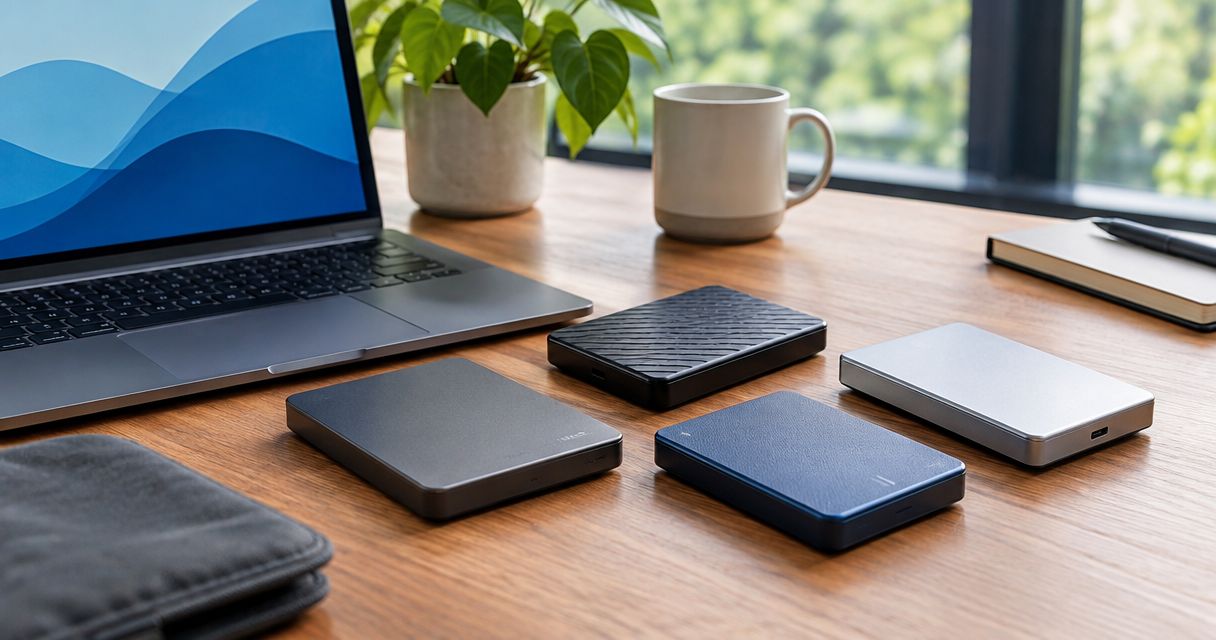
These 2026 picks serve different workflows. The SSD entry is clearly identified because flash storage and mechanical hard drives are not the same category.
| Drive | Best for | Standout feature | Key limitation |
|---|---|---|---|
| WD My Book | Stationary backups | Desktop storage with external power | Needs an outlet and desk space |
| Seagate Expansion Portable | Portable backups | Bus-powered mechanical storage | Moving parts require careful handling |
| WD My Passport | Password protection | Password protection and hardware encryption | Credentials become part of recovery |
| LaCie Rugged Mini | Protected transport | Protective outer enclosure | Still contains a mechanical hard drive |
| Samsung T7 Shield | Frequent transfers | Solid-state storage without moving parts | Not an HDD; connection limits still apply |
A protective case, encryption feature, or faster connection addresses one risk—not every risk. None of these drives replaces an independent backup stored separately.
1. WD My Book: best external hard drive for stationary backups
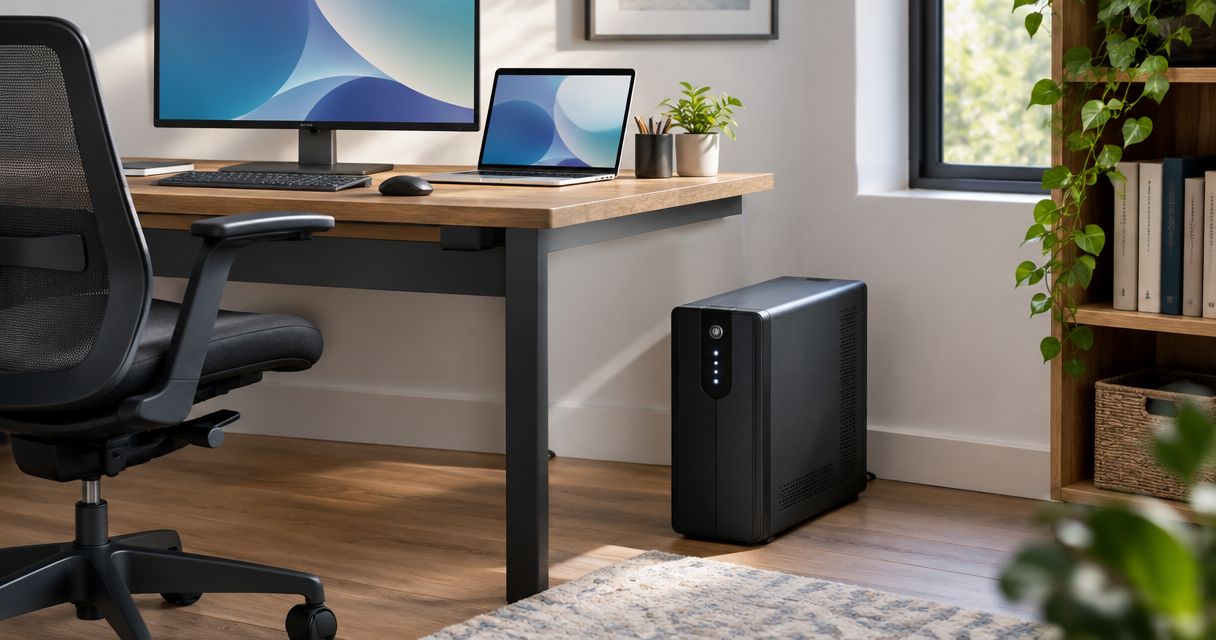
WD My Book is a desktop external hard drive that uses a separate power supply. It fits a home workstation or small-business computer where the backup drive stays in one place rather than traveling in a laptop bag.
WD My Book pros:
- A fixed location makes scheduled backups easier to maintain.
- External power suits a permanent workstation setup.
- A dedicated backup destination separates backup storage from everyday working files.
WD My Book cons:
- The power adapter adds another connection and requires an outlet.
- A drive left attached remains exposed to problems affecting connected storage, including malicious file changes.
Best for: A desktop computer with a regular backup schedule and a separate off-site copy.
Choose WD My Book when consistency matters more than portability. Place it where its cable will not be pulled accidentally, leave ventilation unobstructed, and configure backup software rather than relying on occasional manual copying.
Verdict: Buy WD My Book for a stationary backup setup; skip it for travel.
2. Seagate Expansion Portable: best hard drive for portable backups
Seagate Expansion Portable is a bus-powered external mechanical hard drive. It suits a laptop owner who wants a backup destination that can be connected for a backup session and disconnected afterward.
Seagate Expansion Portable pros:
- No separate power adapter is needed.
- Portable storage fits a connect, back up, and disconnect routine.
- A separate drive can be stored away from the computer between sessions.
Seagate Expansion Portable cons:
- Mechanical components remain vulnerable to shocks, especially during operation.
- A manual connection routine fails when you repeatedly postpone backups.
Best for: Laptop users who reliably connect a backup drive and store it separately afterward.
Seagate Expansion Portable is a practical portable pick, but portability creates responsibility. Let the backup finish, eject the drive through the operating system, and disconnect it before packing your computer.
Do not use the same drive as both the only home for important files and the backup of those files. That arrangement removes the independent copy you were trying to create.
Verdict: Buy Seagate Expansion Portable for deliberate backup sessions; skip it if you need an always-connected desktop arrangement.
3. WD My Passport: best hard drive for password-protected backups
WD My Passport combines portable mechanical storage with password protection and hardware encryption. It belongs on your shortlist when a misplaced backup drive would expose personal records or business documents.
WD My Passport pros:
- Password protection adds access control to portable storage.
- Hardware encryption addresses data exposure if the drive is lost.
- Bus-powered operation avoids a separate power supply.
WD My Passport cons:
- A forgotten password creates a recovery barrier.
- Password protection does not replace a separate backup or prevent physical failure.
Best for: People carrying sensitive backup files who also maintain secure recovery records.
Check the exact WD My Passport model and its operating-system requirements before purchase. Similarly named variants and different generations should not be treated as interchangeable.
Store the password in a password manager or another protected location separate from the drive. Then test the recovery process: a backup that requires software or credentials you cannot access during an outage is not ready for that outage.
Verdict: Buy WD My Passport when password protection is a requirement; skip it if you will not maintain recovery credentials.
4. LaCie Rugged Mini: best hard drive for protected transport
LaCie Rugged Mini is a portable mechanical hard drive with a protective outer enclosure. It suits someone moving backups between locations who wants additional physical protection around the drive.
LaCie Rugged Mini pros:
- The outer enclosure provides a protective buffer during handling.
- Portable construction suits moving a backup away from the primary computer.
- Bus-powered operation reduces the accessories you need to carry.
LaCie Rugged Mini cons:
- The enclosure does not remove the vulnerabilities of moving mechanical parts.
- Physical protection does not protect files from deletion, malware, or lost credentials.
Best for: Carefully transported backups that need a protective enclosure.
Treat LaCie Rugged Mini as protected storage, not indestructible storage. Avoid moving a mechanical drive while it is operating, and do not treat a protective exterior as permission to handle it carelessly.
Keep the distinction between product families clear. LaCie Rugged Mini is the mechanical-drive recommendation here; a different product carrying the Rugged name can have different storage technology and connection requirements.
Verdict: Buy LaCie Rugged Mini for protected transport; skip it if you expect the enclosure to eliminate handling risk.
5. Samsung T7 Shield: best SSD alternative for frequent transfers
Samsung T7 Shield is an external solid-state drive, not an external hard disk. It uses flash storage without moving mechanical parts, making it a different choice for people who connect storage frequently and move substantial working files.
Samsung T7 Shield pros:
- No moving storage components means no mechanical heads or spinning platters.
- SSD storage suits frequent copying and interactive work with external files.
- Bus-powered operation keeps the connection setup simple.
Samsung T7 Shield cons:
- Transfer performance depends on the computer, cable, source storage, and workload.
- Solid-state construction does not prevent deletion, controller failure, or loss.
Best for: Frequent file transfers and portable workflows where mechanical storage is a poor fit.
Samsung T7 Shield is not automatically the right backup purchase simply because it is an SSD. If a mechanical drive finishes your scheduled backup without disrupting work, faster storage does not fix a missing off-site copy or an untested restore procedure.
Verdict: Buy Samsung T7 Shield for frequent transfers; skip the SSD upgrade when your backup process is the actual problem.
Match the drive to your backup routine
For a 2026 purchase, start with how the backup will happen—not the largest number on the box. These decision points separate the recommendations without pretending one drive wins every use case.
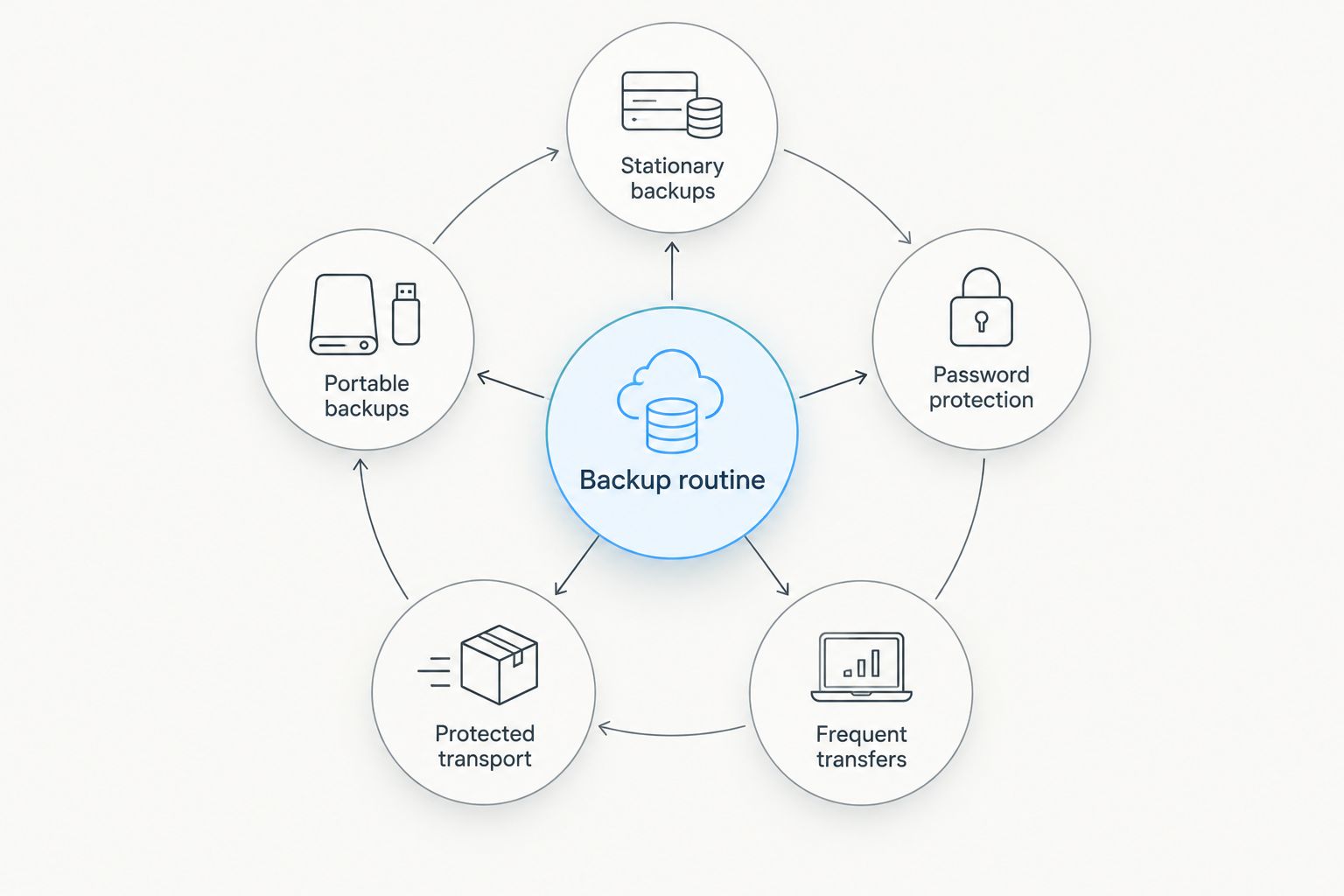
- Stationary backups: Choose WD My Book when the drive stays at a powered workstation.
- Portable backups: Choose Seagate Expansion Portable when you will connect, disconnect, and store the drive separately.
- Password protection: Choose WD My Passport when access control is a defined requirement.
- Protected transport: Choose LaCie Rugged Mini when the enclosure matters during careful handling.
- Frequent transfers: Choose Samsung T7 Shield when an SSD fits the workload.
Before buying, inspect your actual computer ports and the cable supplied with the exact drive. USB-C describes a connector shape; it does not, by itself, establish transfer speed.
USB 2.0 has a theoretical signaling rate of 480 Mb/s. USB 3.0 specifies 5 Gb/s, while USB 3.2 Gen 2 specifies 10 Gb/s. These USB specification rates are not promises of file-copy performance; storage hardware and protocol overhead also affect results.
Make the backup recoverable
A useful backup routine has a defined source, destination, schedule, and restore procedure. Write those down before copying files so you know what the drive protects—and what it does not.
The established 3-2-1 backup approach calls for three copies of your data, on two different media types, with one copy off-site. Buying an external drive addresses only part of that arrangement.
Use backup software that supports the recovery outcome you need. File backups help recover documents; a system image serves a different purpose. Neither should be assumed to include everything without checking its settings.
Tabler's Computer Repair provides remote and on-site IT support for homes and small businesses. For external hard drives for data backup, pair hardware selection with a clear recovery plan rather than treating the purchase as the finished job.
Discuss your backup setup
Get computer support for your home or small business in North County San Diego or the Inland Empire.
How these drives were ranked
This 2026 ranking prioritizes workflow fit: stationary use, portability, access control, physical handling, and frequent transfers. It is a feature-based buying guide, not a claim of laboratory testing or a measured reliability ranking.
WD My Book takes the default desktop slot because its externally powered design fits a fixed backup station. Each alternative earns a different use case; no recommendation depends on an invented failure rate or transfer benchmark.
Which external backup drive should you choose?
Choose WD My Book for a stationary backup setup in 2026. Choose Seagate Expansion Portable for disconnected portable backups, WD My Passport for password protection, LaCie Rugged Mini for protected transport, or Samsung T7 Shield for an SSD workflow.
Before placing an order, confirm the exact model's connection, operating-system support, and encryption requirements. Tabler's Computer Repair's external hard drives for data backup recommendation is straightforward: select the workflow first, then confirm the hardware fits it.
FAQ
What's the best external hard drive for home backups?
WD My Book is the default pick here for home backups that stay at a workstation. Its desktop design requires external power, so choose a portable drive instead if you need to carry backups elsewhere.
Is an external SSD better than a hard drive for backups?
An external SSD is better suited to frequent transfers and workflows where moving mechanical parts are undesirable. A mechanical hard drive remains suitable for scheduled backups when its transfer performance meets your needs.
Can I leave my external backup drive plugged in?
You can leave a backup drive connected for scheduled backups, but it remains accessible to problems affecting connected storage. Keep an independent copy that is disconnected or otherwise isolated.
Does a password-protected drive protect against ransomware?
Password protection is not a substitute for ransomware-resistant backup separation. Once an encrypted drive is unlocked and accessible, software running with sufficient access can change its files.
How much storage do I need for a backup drive?
Choose capacity based on the data being protected, expected growth, and the backup application's retention settings. A drive sized only for your current files leaves little room for retained versions.
Can I use the same external drive with Windows and Mac?
Cross-platform use depends on the file system, encryption software, and backup application. Confirm those requirements before formatting, because formatting erases existing data on the selected drive.
How do I know whether my external-drive backup works?
Restore a sample of important files to a separate location and open them. Check that the backup includes the folders and versions you actually need, not just that a completion message appeared.
One last thing
Test a restore before you need a rescue. Recover a document, a photo, and a folder to a separate location, then open the restored files without relying on the originals.
That check answers the question a product comparison cannot: whether your particular backup can return your particular files. A drive purchase is complete at checkout; a backup setup is complete only when recovery works.