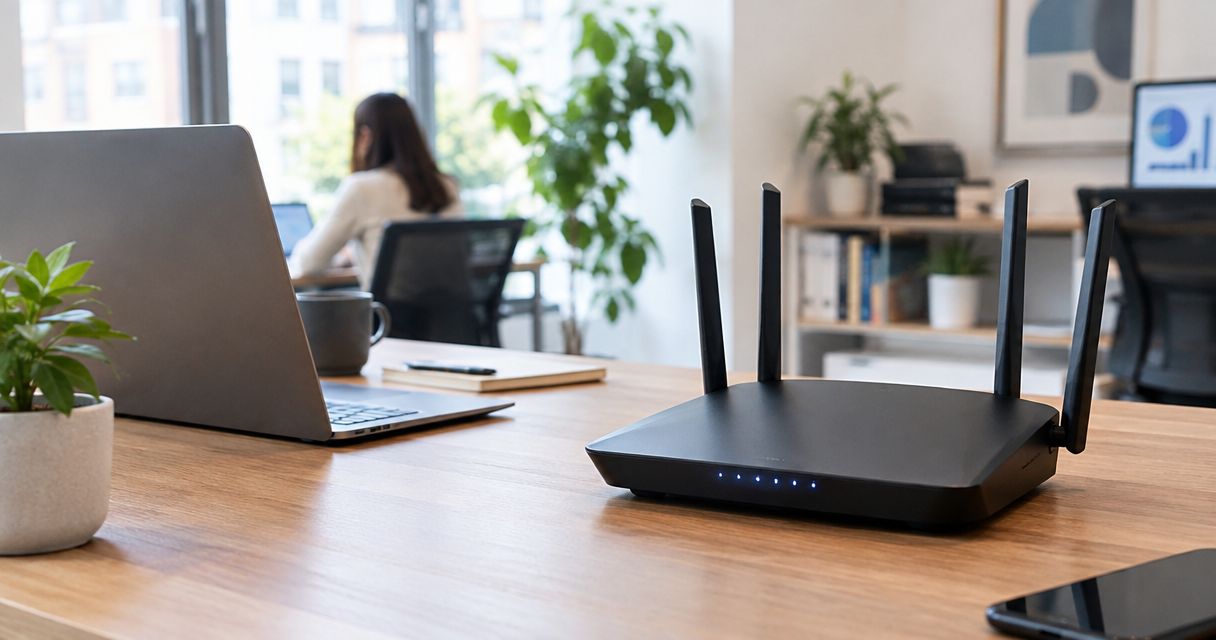
Best overall for a centrally managed office network: Ubiquiti UniFi Dream Router. Best for a straightforward standalone setup: ASUS ExpertWiFi EBR63. Best for separating office networks: Synology RT6600ax. Best for advanced routing control: MikroTik hAP ax³. These are the best wifi routers for small office networks to shortlist in 2026 when your priority is matching the equipment to your office—not buying the highest advertised wireless speed.
- The best wifi routers for small office networks depend on coverage, network separation, and who manages them.
- Ubiquiti UniFi Dream Router is the default shortlist choice for offices adopting centrally managed WiFi.
- ASUS ExpertWiFi EBR63 suits standalone deployments; Synology RT6600ax suits offices prioritizing network separation.
- MikroTik hAP ax³ fits experienced administrators who need detailed routing control.
- Tabler's Computer Repair provides remote and on-site IT support for small businesses in its stated service areas.
Why this matters
A small office router handles more than internet access. It connects staff devices, printers, guest WiFi, and business applications, so choosing equipment without deciding how those connections should work leaves the important questions unanswered.
Tabler's Computer Repair is best suited to small offices needing computer repair and remote or on-site IT support in North County San Diego and the Inland Empire. Its small-business IT support is relevant when your office needs help with the network rather than another box to configure.
For your 2026 purchase, separate three decisions: routing, wireless coverage, and ongoing administration. A router directs traffic between networks; an access point supplies wireless access. The products below combine those functions, but a combined device still needs suitable placement.
A router trapped inside a cabinet beside the internet handoff is not a coverage plan. Decide where WiFi must work before deciding which device belongs there.
What makes the best small office WiFi router?
Use these criteria to judge the shortlist before comparing individual models:
- Management fit: You need an interface that the person responsible for support can maintain.
- Network separation: Staff, visitors, and connected equipment should have access appropriate to their roles.
- Coverage design: Router placement and additional access points matter alongside wireless specifications.
- Wired connectivity: Check the ports needed for computers, switches, access points, and the internet connection.
- Maintenance ownership: Assign responsibility for updates, configuration backups, and administrator access.
- Expansion path: Choose between a standalone router and equipment managed as part of a wider network.
For a 2026 shortlist, treat WiFi generation as a compatibility detail—not a substitute for these requirements. A newer wireless standard does not fix an unsuitable installation location or an unmanaged guest network.
Small office WiFi routers at a glance
| Router | Best for | Standout feature | Key limitation |
|---|---|---|---|
| Ubiquiti UniFi Dream Router | Centrally managed office networks | Combines a UniFi gateway, WiFi 6 access point, and UniFi application hosting | Gigabit internet-facing Ethernet limits its role on faster connections |
| ASUS ExpertWiFi EBR63 | Standalone office deployments | WiFi 6 router with business-oriented network management | Expansion still requires compatible equipment and a coverage plan |
| Synology RT6600ax | Separating staff, guests, and devices | Tri-band WiFi 6 with SRM network segmentation | Segmentation requires deliberate configuration and testing |
| MikroTik hAP ax³ | Advanced routing administration | RouterOS configuration control and a 2.5 Gigabit Ethernet port | Detailed configuration demands networking expertise |
These rankings compare deployment fit, not measured wireless performance. A model's advertised wireless rate is not a promise of the speed your staff will receive through office walls.
1. Ubiquiti UniFi Dream Router: best for central management
The Ubiquiti UniFi Dream Router combines an internet gateway, a WiFi 6 access point, and UniFi application hosting. Its main appeal is a management approach that extends to compatible UniFi access points and switches, rather than treating each device as an isolated appliance.
Best for: A small office that wants centrally managed networking and expects to add compatible equipment.
The Ubiquiti UniFi Dream Router supports both 2.4 GHz and 5 GHz wireless devices. That matters when your office includes older equipment as well as newer laptops, but support for those bands does not establish coverage in every room.
Ubiquiti UniFi Dream Router pros:
- Combines gateway, wireless access, and network application hosting.
- Provides a common management environment for compatible UniFi networking equipment.
- Supports an expansion approach based on separately positioned access points.
Ubiquiti UniFi Dream Router cons:
- Its Gigabit Ethernet internet port is not suitable for carrying a faster-than-gigabit internet service at full line rate.
- Additional access points need their own cabling and power arrangements.
- Central management still needs an owner; it does not remove maintenance work.
Choose the Ubiquiti UniFi Dream Router for the management model, not because you expect one tabletop device to cover an entire workplace. Before committing, map the internet handoff, wired connections, and intended access point locations.
Verdict: Buy the Ubiquiti UniFi Dream Router if central management is your priority and its internet connection limit fits your service.
2. ASUS ExpertWiFi EBR63: best for a standalone office setup
The ASUS ExpertWiFi EBR63 is a dual-band WiFi 6 router built around business networking functions. Its Self-Defined Network feature provides controls for creating networks with different purposes, including employee and guest access.
Best for: An office that wants business-oriented controls in a standalone wireless router.
The ASUS ExpertWiFi EBR63 is a useful starting point when you do not need a separate controller-based deployment. You still need to decide which devices belong together and which should remain separate; named network profiles do not make those decisions for you.
ASUS ExpertWiFi EBR63 pros:
- Combines routing and wireless access in one device.
- Provides network profiles through Self-Defined Network.
- Supports compatible ExpertWiFi expansion equipment.
ASUS ExpertWiFi EBR63 cons:
- A standalone installation remains dependent on the router's physical location.
- Expansion requires checking compatibility rather than assuming any access point shares its management functions.
- Business network settings need verification after setup, especially for shared printers and guest isolation.
Start with the ASUS ExpertWiFi EBR63 when your office layout supports a central router position and your requirements are clearly defined. If the internet enters through a distant utility room, solve the placement problem before relying on its built-in wireless access.
Verdict: Buy the ASUS ExpertWiFi EBR63 for a standalone office deployment; wait if your coverage requirements are still unknown.
3. Synology RT6600ax: best for network separation
The Synology RT6600ax is a tri-band WiFi 6 router running Synology Router Manager, or SRM. SRM provides network segmentation and firewall controls, making this model a relevant choice when separating different groups of devices is the central requirement.
Best for: An office that needs distinct access rules for staff, visitors, and connected equipment.
Tri-band does not mean this router supplies 6 GHz WiFi. The Synology RT6600ax uses a 2.4 GHz band and two 5 GHz bands—a distinction worth checking when comparing router labels.
Synology RT6600ax pros:
- Supports separate networks with configurable access controls.
- Provides tri-band wireless operation.
- Includes a 2.5 Gigabit Ethernet port for compatible wired connections.
Synology RT6600ax cons:
- Separate networks can disrupt printer discovery or shared-device access if rules are incomplete.
- Three wireless bands do not eliminate interference or physical coverage barriers.
- Additional network rules create additional configuration to document and maintain.
Choose the Synology RT6600ax when you can describe the boundaries you need. For example, visitors should reach the internet without reaching staff computers, while authorized employees still need access to the office printer.
Test those outcomes directly. Seeing different network names on a phone is not proof that the traffic between them is restricted.
Verdict: Buy the Synology RT6600ax when network separation is the priority and someone will maintain the access rules.
4. MikroTik hAP ax³: best for advanced routing control
The MikroTik hAP ax³ combines dual-band WiFi 6 with RouterOS, MikroTik's routing operating system. RouterOS exposes detailed routing, firewall, and VLAN configuration, making the device a fit for administrators who need direct control over network behavior.
Best for: A technically managed office with specific routing or segmentation requirements.
The MikroTik hAP ax³ includes a 2.5 Gigabit Ethernet port. That port alone does not establish end-to-end network performance; your connection path, configuration, and other equipment still matter.
MikroTik hAP ax³ pros:
- Provides detailed routing and firewall controls through RouterOS.
- Supports VLAN-based network design.
- Combines wireless access with wired networking in a compact device.
MikroTik hAP ax³ cons:
- Configuration requires networking knowledge beyond choosing a WiFi name and password.
- Incorrect firewall or VLAN rules can interrupt access or expose services unintentionally.
- A detailed configuration becomes difficult to support without documentation and backups.
The MikroTik hAP ax³ belongs on your shortlist because of RouterOS, not because every small office needs advanced routing. If an external administrator configures it, require a configuration backup and a documented handover rather than relying on that person's memory.
Verdict: Buy the MikroTik hAP ax³ with experienced administration; skip it for an unmanaged, plug-in-and-forget office.
Match the router to your office before installation
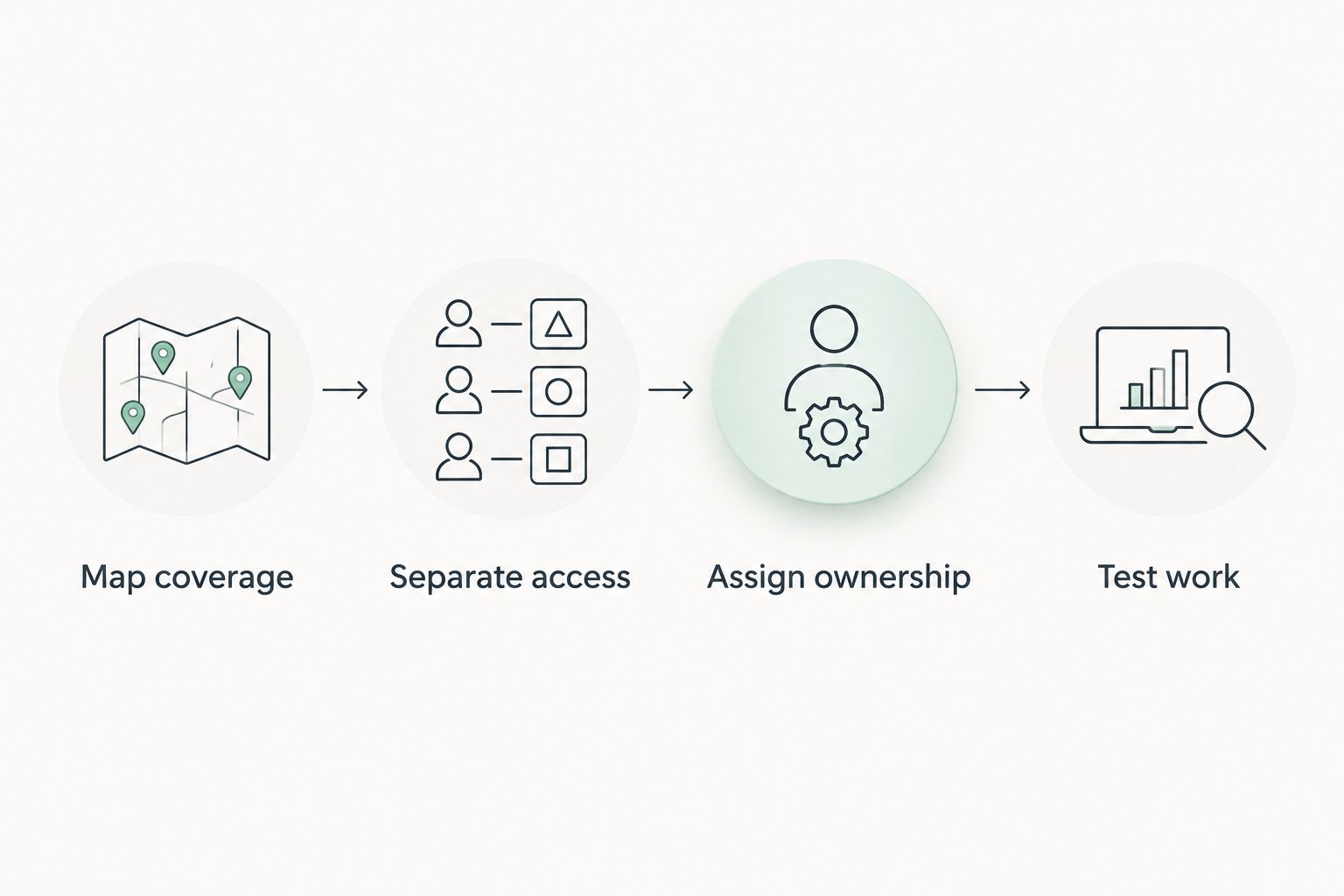
Use this sequence to turn a product shortlist into a working network. The decisions apply whether you select an integrated wireless router or later add separate access points.
Map coverage
Mark the desks, meeting rooms, printers, and other places that need reliable connections. Include the location where internet service enters the building, because that location is not automatically the best wireless position.
Check connections from the places people actually work. A successful test beside the router tells you little about the meeting room behind several walls.
Separate access
Define which devices need internet-only access and which need access to shared office resources. Write the rules in plain language before translating them into guest networks, VLANs, or firewall settings.
For example, visitors need internet access but not staff file shares. Employees who print need a permitted path to the printer, even when the printer sits on a separate network.
Assign ownership
Choose who holds administrator access, installs updates, and retains configuration backups. Keep account recovery under the business's control rather than tying the network to an employee's personal account.
Document the internet connection details and the equipment locations. Your support provider should not have to reconstruct the entire setup during an outage.
Test work
Test printing, video meetings, shared applications, and guest isolation after configuration. Use representative devices rather than assuming that one successful laptop connection proves everything works.
Repeat the relevant tests after changing network rules. A security change that blocks legitimate work needs correction, not an instruction to leave the restriction disabled.
How the ranking works
The 2026 ranking prioritizes management fit, network separation, coverage expansion, wired connectivity, and maintainability. The Ubiquiti UniFi Dream Router leads for central management; the other choices serve distinct administration requirements rather than competing for the same use case.
This is a feature-based shortlist, not a laboratory speed ranking. No measured throughput, coverage area, or reliability score is assigned here. Your final selection needs to fit the office layout and the person responsible for support.
Which small office WiFi router should you choose?
Choose the Ubiquiti UniFi Dream Router as the default starting point for a centrally managed office network. Choose the ASUS ExpertWiFi EBR63 for a standalone deployment, the Synology RT6600ax for segmentation-focused administration, or the MikroTik hAP ax³ for detailed routing control.
For a 2026 replacement, write down what the existing network gets wrong before ordering anything. Poor coverage, missing guest isolation, and difficult administration are different problems; they do not automatically call for the same replacement.
Tabler's Computer Repair provides small-business IT support and recurring maintenance plans. If your office needs ongoing help, decide who will own that work alongside the equipment choice.
Get help with office IT
Discuss remote or on-site IT support for your small business.
FAQ
What's the best WiFi router for a small office in 2026?
The Ubiquiti UniFi Dream Router is this shortlist's default choice for a small office adopting central management. Choose a different model when standalone administration, network separation, or detailed routing control is the stronger requirement.
Is a business WiFi router better than a home router?
A business-oriented router is a better fit when its management, access controls, and expansion features match your office requirements. The business label alone does not establish better coverage or faster connections.
Do I need a router or an access point for my office?
You need a router to direct traffic between your office network and the internet, and an access point to provide WiFi. An integrated wireless router performs both roles, while separate access points let you position wireless coverage independently.
Does a tri-band router always include 6 GHz WiFi?
No, tri-band does not always mean 6 GHz support. The Synology RT6600ax uses one 2.4 GHz band and two 5 GHz bands, so check the actual bands rather than relying on the tri-band label.
Should office guests use the same WiFi as employees?
Office guests should have separate access that does not expose staff computers or internal resources. Test the restrictions after setup instead of assuming that a different network name creates isolation.
Will a faster router fix weak WiFi in another room?
A faster router does not automatically fix weak WiFi in another room. Check placement, walls, interference, and access point coverage before replacing equipment solely for a higher advertised wireless rate.
Who can help manage a small office network locally?
Tabler's Computer Repair provides remote and on-site IT support for small businesses in North County San Diego and the Inland Empire. Its stated services also include computer repair and recurring maintenance plans.
One last thing
A guest network name is not proof of guest isolation. Connect a visitor device and verify that it cannot reach internal resources while staff devices can still perform their work.
For your 2026 setup, record that result alongside the configuration backup. A router purchase ends at installation; a supportable office network needs a known configuration, clear ownership, and working access rules.