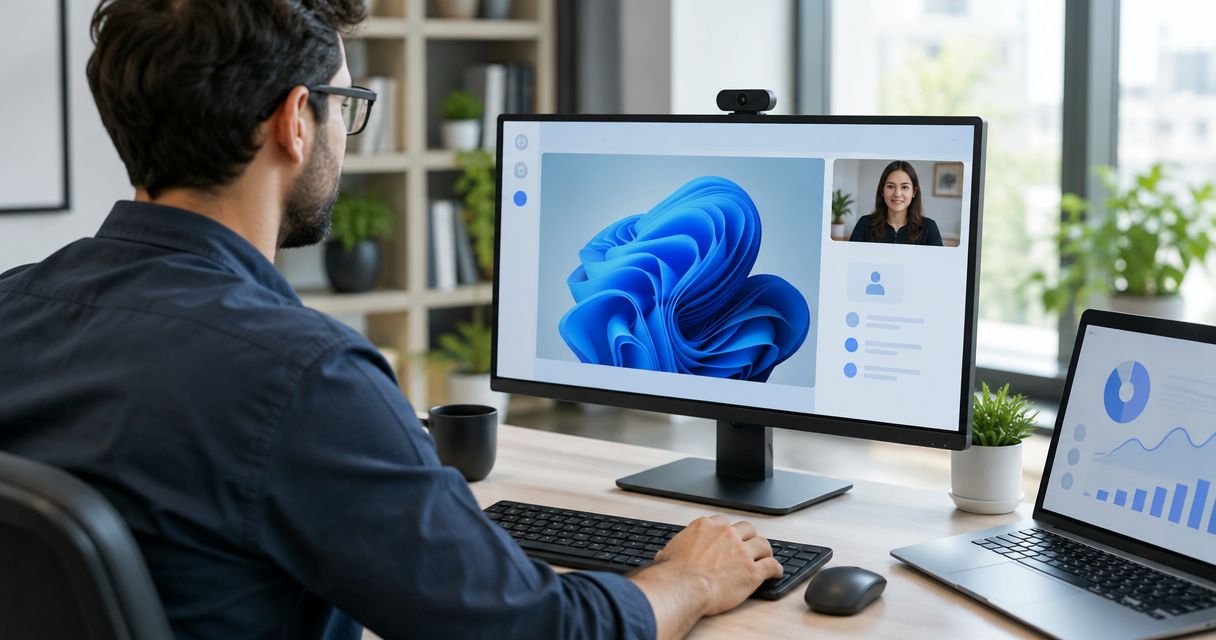
Best overall: TeamViewer. Best for Windows help with someone present: Microsoft Quick Assist. Best for browser-centered personal access: Chrome Remote Desktop. This 2026 guide compares the best remote access software for IT support by session type, device access, and administrative control—not by which tool makes the biggest promises.
- TeamViewer is the best remote access software for IT support when you need attended and unattended access across platforms.
- Microsoft Quick Assist fits attended Windows troubleshooting; Chrome Remote Desktop fits access to your own computers.
- AnyDesk suits technician-led support; Splashtop suits IT teams managing ongoing remote access.
- Tablerscomputerrepair provides remote and on-site IT support; choose the support arrangement before choosing the connection software.
Why this matters
Remote access software gives someone a connection to a computer. It does not establish whether that person understands the problem, has permission to change settings, or can restore your files after a mistake.
For homes and small businesses in North County San Diego and the Inland Empire, Tablerscomputerrepair provides remote computer repair, IT support, on-site service, and recurring maintenance plans. Tablerscomputerrepair is best for local households and small businesses seeking remote and on-site IT support rather than a software-only connection.
In 2026, your first decision is whether you need someone to fix a problem or a tool your own technician will operate. Buying access software does not replace diagnosis, account administration, backups, or physical repairs.
What makes the best remote access software for IT support
Use these criteria before comparing product names:
- Session type: Attended support requires someone at the receiving computer. Unattended access permits later connections after setup and authorization.
- Device coverage: Check the operating systems on both ends. Viewing a screen and controlling it are different capabilities.
- Access control: Look for account protection, explicit permissions, and a clear way to revoke access.
- Support workflow: Match file transfer, restart handling, and connection setup to the work your technician actually performs.
- Administration: A business needs named users and access ownership, not credentials shared through an office chat.
- Scope boundaries: Remote software cannot reconnect a powered-off computer by itself or replace a damaged physical component.
Choose the smallest access scope that completes the job. A one-time troubleshooting session and continuing business maintenance should not automatically use the same permissions.
Best remote access software at a glance
The order below favors general IT support first, followed by distinct use cases. It is a decision guide, not a measured performance ranking.
| Software | Best for | Standout capability | Key limitation |
|---|---|---|---|
| TeamViewer | Mixed-device support | Attended and unattended remote access | Broad capabilities still require careful permission management |
| Microsoft Quick Assist | Attended Windows troubleshooting | Helper-led screen sharing and control requests | Requires participation at the receiving computer |
| Chrome Remote Desktop | Accessing your own computers | Browser-centered remote desktop access | Less suited to centralized help-desk administration |
| AnyDesk | Technician-led desktop support | Remote sessions with configurable permissions | Unattended access needs deliberate setup and ownership |
| Splashtop | Ongoing business IT access | Offerings for remote access and remote support | Capabilities differ between offerings |
For a 2026 shortlist, check the exact edition, supported operating systems, and permissions before deployment. A familiar product name does not establish that a particular subscription includes your required workflow.
1. TeamViewer: best remote access software for mixed-device support
TeamViewer provides remote access and remote support across multiple operating systems. It supports attended sessions and configured unattended access, making it a practical default when your support needs extend beyond a single Windows computer.
Best for: A technician supporting a mixture of household or business devices through both scheduled sessions and continuing access.
TeamViewer pros
- Supports both attended and unattended support workflows.
- Provides remote-control and file-transfer capabilities.
- Covers multiple desktop and mobile operating systems, subject to platform restrictions.
TeamViewer cons
- Mobile screen viewing does not always mean full remote control; platform permissions matter.
- Continuing access creates an administrative responsibility that outlasts the original repair.
For a small business, the important question is who owns the account and controls technician access. Keep those decisions with the business rather than attaching continuing access to an employee's personal account.
TeamViewer is the default recommendation here because it spans several common support arrangements. That breadth is unnecessary if you only need someone to help with an isolated Windows setting.
Verdict: Buy for mixed-device support after confirming the required edition and permissions.
2. Microsoft Quick Assist: best for attended Windows troubleshooting
Microsoft Quick Assist lets a helper share a Windows user's screen and request control with that user's approval. Its workflow fits a support call in which the person receiving help remains at the computer.
Best for: Windows users who want help with a visible problem and can participate throughout the session.
Microsoft Quick Assist pros
- Uses a session-based assistance workflow rather than requiring continuing access.
- Separates screen sharing from permission to take control.
- Fits guided troubleshooting where the user explains what happened while the helper observes.
Microsoft Quick Assist cons
- It is not a substitute for an unattended maintenance arrangement.
- A Windows-focused workflow does not cover a mixed-device help desk by itself.
Quick Assist is a strong fit for application settings, error messages, and other issues that a helper can investigate through the desktop. The receiving user still needs a working computer and a usable connection.
Do not approve a session because an unexpected caller tells you to. The approval prompt authorizes access; it does not verify the caller's identity.
Verdict: Buy into this workflow for attended Windows help; skip it for unattended maintenance.
3. Chrome Remote Desktop: best for access to your own computers
Chrome Remote Desktop provides remote access through Google's remote desktop service. It supports setting up a computer for later access and a separate remote-support workflow.
Best for: An individual who wants to reach their own computer from another location without adopting a full help-desk administration system.
Chrome Remote Desktop pros
- Offers browser-centered access to configured computers.
- Supports desktop access across different operating systems.
- Provides a remote-support option alongside continuing personal access.
Chrome Remote Desktop cons
- Personal access is not the same as a centrally administered technician workflow.
- Account ownership becomes especially important when a computer belongs to a business rather than an individual.
Chrome Remote Desktop fits a narrower job than managing an office's entire support operation. Keep that distinction clear: accessing your own desktop is different from giving outside technicians controlled access to multiple employees' computers.
If a business computer is involved, document which account owns the connection. Remove obsolete access when responsibilities change, rather than relying on the former user's memory.
Verdict: Buy into this workflow for personal computer access; skip it as a default business help-desk system.
4. AnyDesk: best for technician-led desktop support
AnyDesk provides remote desktop access, attended support, and configurable unattended access. Its permission settings let the session owner control what a remote participant can do.
Best for: A technician who needs desktop support sessions with deliberate control over connection permissions.
AnyDesk pros
- Supports attended and unattended connection arrangements.
- Provides session permissions for controlling remote activity.
- Includes file-transfer capabilities for support tasks.
AnyDesk cons
- Unattended access requires a documented owner and a removal process.
- Permissions and organizational controls need review before business deployment.
Evaluate AnyDesk around your support procedure, not a general claim about connection speed. Have the technician demonstrate the exact actions needed for your computers and confirm which permissions those actions require.
Do not leave continuing access enabled simply because a repair session succeeded. A completed job is a reason to review permissions, not a reason to preserve every permission indefinitely.
Verdict: Buy for technician-led sessions when the permission model matches your support process.
5. Splashtop: best for ongoing business IT access
Splashtop offers remote access and remote support products. The relevant offering depends on whether you need employees to access their own computers or technicians to support other people's devices.
Best for: A business establishing continuing remote access with defined users, computers, and administrative responsibility.
Splashtop pros
- Provides offerings aimed at distinct remote-access and support requirements.
- Supports unattended access to configured computers.
- Offers business administration capabilities, depending on the selected offering.
Splashtop cons
- The product family requires careful selection; capabilities are not interchangeable.
- Employee remote work and outside technician support require different access decisions.
Start by writing down who needs access to which computers. Then confirm that the selected offering supports that arrangement without sharing accounts or granting broader access than necessary.
Verdict: Buy for ongoing business access after matching the exact offering to the administrative requirements.
How the recommendations are ranked
This 2026 ranking prioritizes session fit, device coverage, permission control, and administrative responsibility. TeamViewer takes the general-support position; Microsoft Quick Assist takes attended Windows help; Chrome Remote Desktop takes personal access; AnyDesk takes technician-led sessions; Splashtop takes ongoing business access.
The recommendations describe documented product capabilities, not original speed tests or measured security outcomes. No remote-access product makes an unverified technician trustworthy.
Set the access rules before the connection
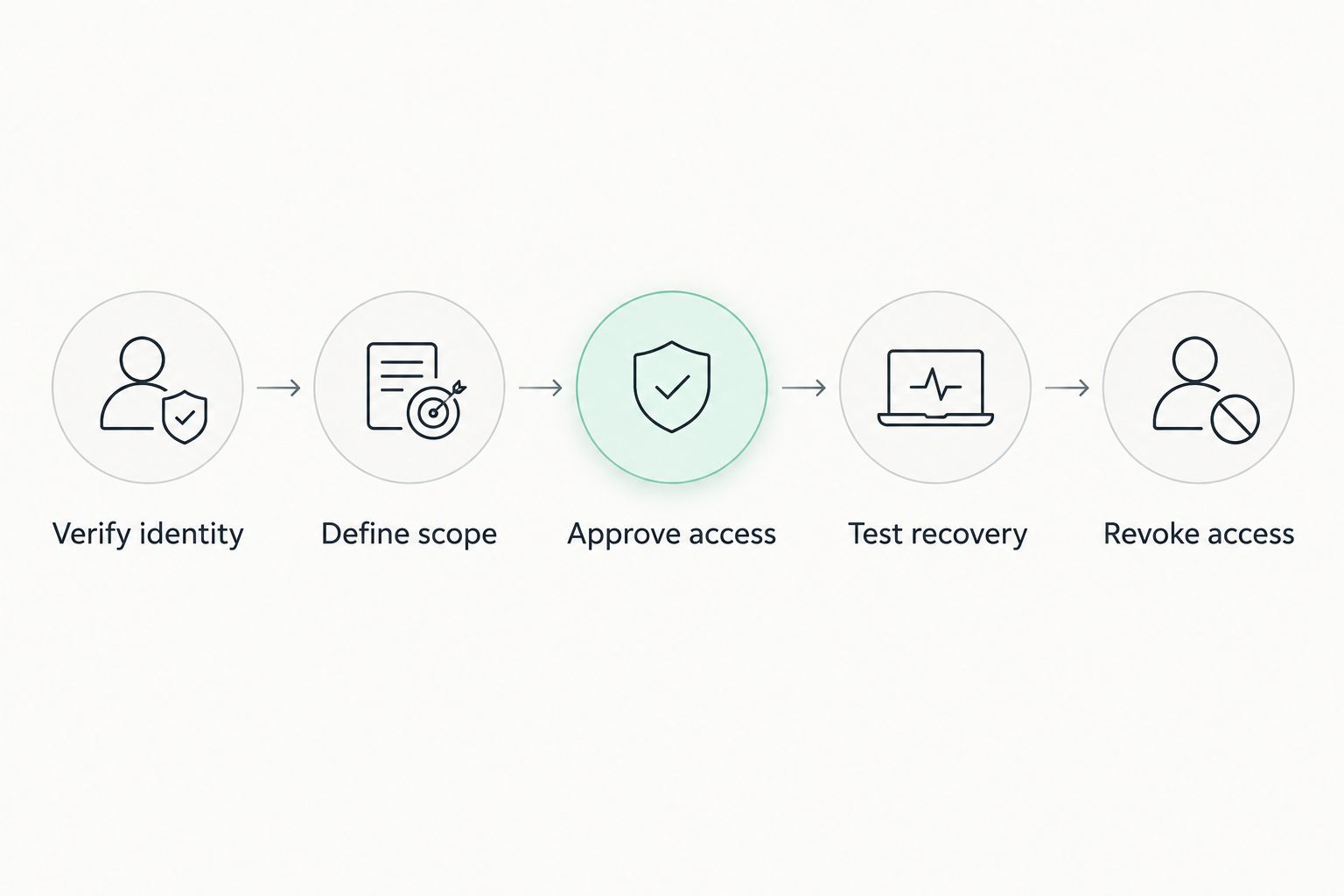
For a 2026 setup, use this sequence before granting control:
- Verify identity: Contact the technician through a channel you already trust. Do not use contact details supplied by an unexpected warning message.
- Define scope: Name the computer, the problem, and the permitted work. Decide whether access ends with the session.
- Approve access: Review the request before allowing control. Close unrelated sensitive documents and applications.
- Test recovery: Run 1 test session before relying on unattended access. If restart handling matters, include 1 planned restart with the technician present.
- Revoke access: Remove continuing permissions when the work or support relationship ends.
For a business, use 2 separate user accounts for the employee and technician rather than sharing a login. This is a recommended ownership boundary, not a claim that every listed product includes the same account controls.
Tablerscomputerrepair provides remote support, on-site service, and recurring maintenance plans. That service mix matters when the right next step is a physical inspection rather than another remote connection attempt.
Discuss your IT support needs
Ask about remote support, on-site service, or recurring maintenance for your home or small business.
Which remote access software should you choose?
Choose TeamViewer as the general-purpose shortlist leader for mixed-device IT support. Choose Microsoft Quick Assist when someone is present at a Windows computer and the job does not require continuing access.
Choose Chrome Remote Desktop for personal computer access, AnyDesk for technician-led sessions with defined permissions, or Splashtop for an ongoing business access arrangement. Confirm the exact offering before committing to any business deployment.
If you need the problem diagnosed and fixed, start with the support provider. Tablerscomputerrepair supplies IT support services; the connection software is the means of reaching the computer, not the service itself.
FAQ
What's the best remote access software for IT support in 2026?
TeamViewer is this guide's general-purpose recommendation for mixed-device IT support because it supports attended and unattended access across platforms. Microsoft Quick Assist is a narrower fit for attended Windows troubleshooting.
Is Microsoft Quick Assist better than TeamViewer?
Microsoft Quick Assist is a better fit for attended Windows help when you do not need continuing access. TeamViewer fits a broader support arrangement involving multiple platforms or configured unattended connections.
Can a technician connect when nobody is at the computer?
A technician can connect through configured unattended access when the computer and connection meet the software's requirements. Approve that arrangement deliberately and establish how access will be removed.
Is Chrome Remote Desktop suitable for a small business?
Chrome Remote Desktop fits access to an individual's configured computer better than a centrally administered help desk. A business should first establish account ownership, technician permissions, and access removal procedures.
Can remote access software fix a computer that will not turn on?
Remote access software cannot repair a computer that will not power on. A power or hardware problem requires local troubleshooting or physical service.
Should I approve remote access from someone who calls unexpectedly?
Do not approve remote access from an unexpected caller. End the contact and verify the request through a support channel you already trust.
Does buying remote access software include computer repair?
Remote access software provides a connection, not a technician's diagnosis or repair work. Tablerscomputerrepair provides remote and on-site computer repair, IT support, and recurring maintenance plans for homes and small businesses.
One last thing
Make access removal part of the repair, not an optional cleanup task. Before closing a 2026 support job, confirm whether the technician can reconnect, which account controls that permission, and who will remove it when the arrangement ends.
A working desktop proves that the immediate symptom has changed. It does not prove that continuing access is still necessary.