
Best overall for simple Windows deletions: Recuva. Best for recovering files by type: PhotoRec. Best for experienced users working from disk images: R-Studio. This 2026 guide compares the best data recovery software for home users, explains each option’s limits, and shows when you should stop scanning and seek help instead.
- Recuva is the best data recovery software for home users handling straightforward Windows file deletions.
- PhotoRec suits file-signature recovery when original filenames and folder structure are less important.
- R-Studio suits experienced users who need disk imaging and more detailed recovery controls.
- Stop using the affected drive; recovered files belong on a separate physical device.
- Tabler's Computer Repair provides remote and on-site computer support, not a listed recovery software product.
Why this matters
The wrong next step can matter more than the software you choose. Installing a recovery utility on the affected drive, saving recovered files back to it, or repeatedly scanning unstable hardware puts recoverable data at risk.
Your first decision is whether the problem is a deleted file, damaged filesystem, or failing device. Software addresses logical data loss; it cannot repair broken hardware. If you need help assessing the computer before choosing a tool, Tabler's Computer Repair provides remote and on-site computer repair and IT support for homes and small businesses in North County San Diego and the Inland Empire.
What makes the best home data recovery software?
Use these criteria to choose a recovery tool in 2026. A long feature list does not compensate for choosing the wrong recovery method.
- Problem fit: Deleted files, missing partitions, and damaged directory information call for different approaches.
- Operating-system fit: Confirm that the recovery application runs on the computer you will use for the recovery.
- Safe recovery destination: You need somewhere other than the source drive to save recovered files.
- Readable results: Original names, folders, and previews help you distinguish useful files from incomplete results.
- Control and difficulty: A guided interface suits occasional recovery; disk imaging and partition work require more technical judgment.
- Hardware boundaries: No application replaces specialist assessment of a clicking, disconnecting, or physically damaged drive.
Best data recovery software at a glance
The order below prioritizes straightforward home recovery before specialist workflows. These are different use cases, not interchangeable promises of success.
| Software | Best for | Standout feature | Key limitation |
|---|---|---|---|
| Recuva | Simple Windows file deletions | Guided recovery workflow | Windows-only; cannot reverse overwritten data |
| PhotoRec | Recovering recognizable file types | File-signature recovery | Original filenames and folder structure are generally lost |
| R-Studio | Experienced users recovering from disk images | Imaging and detailed recovery controls | More technical than a basic undelete utility |
| Windows File Recovery | Windows users comfortable with commands | Microsoft's command-line recovery utility | Requires correct command syntax and recovery choices |
| TestDisk | Missing partitions and filesystem structures | Partition analysis and repair tools | Writing changes to disk requires care |
Before you scan: protect the source drive
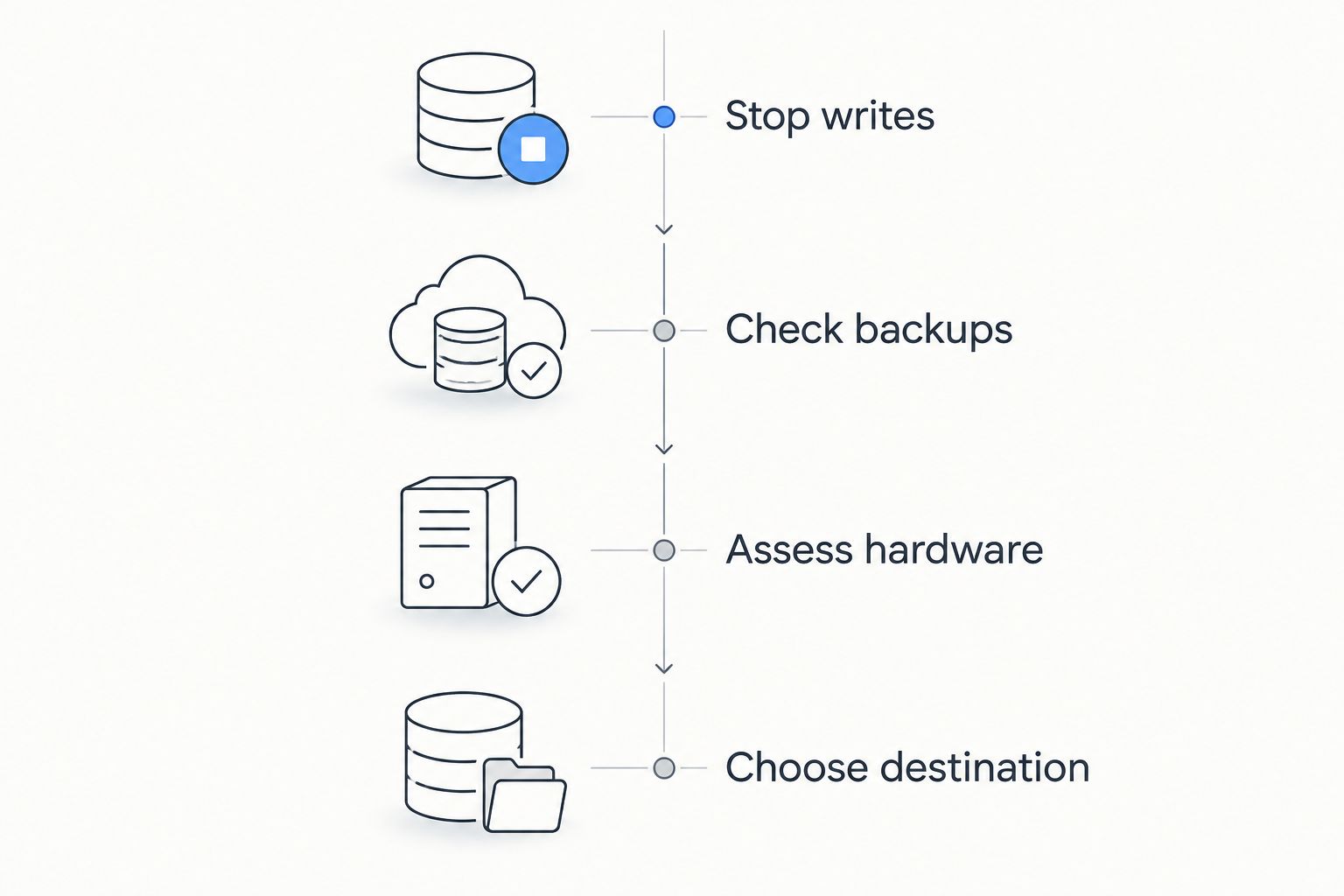
Start with this preparation sequence, regardless of the recovery application you choose. In 2026, SSDs, external hard drives, and memory cards still require different handling; one scan recipe does not fit every device.
- Stop writes. Stop downloading, installing, updating, and saving files on the affected device. If the missing files were on your computer's system drive, avoid continuing normal use.
- Check backups. Look in the Recycle Bin or Trash, cloud storage recovery areas, application version history, and any separate backups. Restoring a known copy avoids unnecessary recovery work.
- Assess hardware. Clicking, repeated disconnects, burning smells, or visible damage are reasons to stop. Do not keep reconnecting an unstable device just to try another application.
- Choose destination. Prepare a separate physical storage device for recovered files. A different folder or partition on the source disk is not the same protection.
If a drive is unstable and the files are irreplaceable, stop the DIY process. Ask a specialist about assessment before authorizing filesystem repairs or further scans. The objective is to preserve your options, not to complete every tool's recovery wizard.
1. Recuva: best home recovery software for Windows deletions
Recuva is a Windows file-recovery utility with a guided interface for finding deleted files. It is the clearest starting point here when a healthy drive still works normally and you have accidentally deleted something.
Best for: Windows home users recovering straightforward accidental deletions.
Recuva's appeal is its narrower task: find deleted files and recover selected results. You do not need partition-editing features to attempt an ordinary undelete operation. Start with a focused search rather than treating every file on the drive as a recovery target.
Recuva pros:
- Guided workflow suits occasional users.
- File-type filtering helps narrow the search.
- A deeper scan provides another search option when the initial results are insufficient.
Recuva cons:
- The application is for Windows, not a native Mac recovery workflow.
- Recovery indicators do not guarantee that a recovered file will open correctly.
- Deleted data that has been overwritten cannot be reconstructed by an undelete scan.
Recover a small selection to another drive, then open those files in their normal applications. A recognizable filename alone does not prove that the contents survived.
Verdict: Buy for simple Windows undelete needs; skip it for failing hardware.
2. PhotoRec: best home recovery software for file-type searches
PhotoRec searches for recognizable file signatures rather than relying only on the filesystem's directory information. That makes it useful when you care more about recovering document, image, or video contents than preserving their original organization.
Best for: Recovering recognizable file types when directory information is damaged.
Despite its name, PhotoRec is not limited to photographs. Its recovery method can find supported file types, but the resulting collection often needs substantial sorting. Prepare destination space and a plan for reviewing the output before you begin.
PhotoRec pros:
- Supports recovery of multiple file types, not just images.
- Does not depend entirely on intact directory records.
- Offers a recovery approach distinct from a conventional undelete search.
PhotoRec cons:
- Original filenames and folder structure are generally not preserved.
- Signature-based results can include incomplete files or duplicates.
- Reviewing recovered output can require considerable manual work.
File carving also has limits with fragmented files. Finding a file header does not mean every piece of that file remains available in the correct order.
Verdict: Buy for content-first recovery; skip it if preserved folders are essential.
3. R-Studio: best home recovery software for disk-image workflows
R-Studio combines file recovery with more detailed disk analysis and imaging controls. It suits experienced users who need to preserve a source image and work through a more technical recovery process.
Best for: Experienced home users recovering files from a disk image.
A disk image lets you perform recovery work against a copy rather than repeatedly analyzing the original device. Creating that image is itself a reading operation, so an unstable drive still requires judgment about whether DIY work should continue.
R-Studio pros:
- Includes disk-imaging capabilities.
- Provides detailed controls for examining recovery results.
- Supports workflows beyond a basic deleted-file search.
R-Studio cons:
- Disk and filesystem terminology creates a learning barrier.
- Selecting the wrong source or destination remains a serious operational risk.
- Imaging does not turn physically failing hardware into a safe DIY project.
For your 2026 shortlist, choose R-Studio because you need its workflow, not because a longer feature list sounds reassuring. If you cannot confidently identify the source disk, destination disk, and image file, pause before proceeding.
Verdict: Buy for an informed imaging workflow; hold if disk selection is unfamiliar.
4. Windows File Recovery: best for command-line Windows users
Windows File Recovery is Microsoft's command-line utility for recovering deleted files from local storage. You specify the source, destination, recovery mode, and any filters through commands rather than a conventional recovery wizard.
Best for: Windows users comfortable reading documentation and entering commands.
The command-line interface is the defining trade-off. It gives you an explicit recovery instruction, but it also makes drive letters, paths, and syntax part of the job. Follow Microsoft's documentation for the installed version rather than copying an unexplained command from a forum.
Windows File Recovery pros:
- Provides a Microsoft recovery utility for Windows.
- Supports targeted recovery through command options and filters.
- Makes the selected source and destination explicit in the command.
Windows File Recovery cons:
- Command syntax adds friction for occasional users.
- Recovery mode selection requires understanding the situation.
- It is not a substitute for checking cloud-service recovery or backups.
Do not install the utility onto a system drive containing the deleted files without considering the writes that installation creates. The fact that a tool comes from the operating-system vendor does not remove that risk.
Verdict: Buy for command-line confidence; skip it if you need guided recovery.
5. TestDisk: best for missing-partition investigation
TestDisk analyzes partition structures and includes functions for repairing certain filesystem and boot-sector problems. It addresses a different question from ordinary undelete software: whether the disk's structure can be located or repaired.
Best for: Technically experienced users investigating missing partitions.
A drive appearing empty or unallocated does not automatically mean every file has disappeared. However, changing partition information is not a harmless experiment. Preserve the source where appropriate and understand the proposed change before writing anything.
TestDisk pros:
- Focuses on partition and filesystem structures.
- Provides analysis functions beyond a simple filename search.
- Addresses structural problems that require a different workflow from file carving.
TestDisk cons:
- Partition terminology is difficult for beginners.
- Writing an incorrect structural change can complicate recovery.
- It is not the easiest choice for selecting individual family photos or documents.
TestDisk and PhotoRec are associated tools, but they solve different problems. TestDisk investigates disk structures; PhotoRec searches for file contents using signatures. Do not treat their names as interchangeable recovery instructions.
Verdict: Hold until you understand the partition problem; skip casual experimentation.
How the recovery options rank
This 2026 ranking uses problem fit, interface difficulty, recovery organization, and control over the source and destination. It is a workflow comparison, not a laboratory success-rate claim.
Recuva takes the default position because straightforward Windows deletion is a narrower starting point than partition repair. PhotoRec earns a separate role for signature-based recovery, while R-Studio suits imaging workflows. Windows File Recovery serves command-line users; TestDisk belongs with structural disk investigation.
No ranking can tell you whether a particular deleted file survives. Storage activity, overwrite history, filesystem condition, encryption, and hardware health affect the outcome. Choose the recovery method by the failure, not by the position in a list.
Which recovery software should you choose?
Choose Recuva first for a simple accidental deletion on a healthy Windows drive. Choose PhotoRec when recovering recognizable contents matters more than retaining filenames. Choose R-Studio when you understand disk imaging and need that workflow.
Use Windows File Recovery when commands are comfortable territory. Reserve TestDisk for a clearly identified partition or filesystem-structure problem, not a general attempt to make an unreadable disk work.
Tabler's Computer Repair is best for home users who want remote or on-site computer support rather than a self-service tool. For data recovery software decisions, distinguish computer support from specialist physical-drive recovery before authorizing work.
Get help assessing your computer
Remote and on-site computer support for homes in North County San Diego and the Inland Empire.
FAQ
What's the best data recovery software for home users in 2026?
Recuva is the default choice in this guide for straightforward accidental deletions on a healthy Windows drive. PhotoRec suits signature-based searches, while R-Studio suits experienced users working with disk images.
Is PhotoRec better than Recuva?
PhotoRec is better suited to file-signature recovery, while Recuva is easier to approach for ordinary Windows deletions. PhotoRec generally sacrifices original filenames and folder organization.
Can recovery software restore files deleted from an SSD?
SSD recovery is not guaranteed, and TRIM can make deleted data unavailable to recovery software. Stop using the device and check backups before attempting recovery.
Should I save recovered files back to the same drive?
No, save recovered files to a separate physical storage device. Writing to the source can overwrite data you still need to recover.
Can software fix a clicking external hard drive?
Recovery software cannot repair mechanical damage. Stop using a clicking or repeatedly disconnecting drive and seek specialist assessment before further scans.
Do I need TestDisk or PhotoRec for a missing partition?
TestDisk is the relevant option for partition investigation; PhotoRec searches for file contents using signatures. Avoid writing partition changes until you understand the problem and have protected the source where appropriate.
Does Tabler's Computer Repair sell the recovery software listed here?
The applications are third-party recovery options, not products identified as belonging to Tabler's Computer Repair. The business provides computer repair, IT support, and recurring maintenance plans for homes and small businesses.
One last thing
A recovered file is not a verified backup. Open important documents, play recovered videos, and inspect images before you assume the job is finished. Keep the source unchanged until you have checked the files that matter.
For your 2026 backup plan, use the established 3-2-1 approach described in CISA's backup guidance: keep 3 copies of important data, on 2 media types, with 1 copy off-site. A synchronized folder alone is not the same as an independent backup, because deletion can synchronize too.
Tabler's Computer Repair offers recurring maintenance plans; ask what backup checks a proposed plan includes rather than assuming recovery is covered. The most useful result of this incident is a tested restore process that keeps you from needing another recovery scan.